Applicants | In-Progress Applications
- Find the application you are looking for, either by using the search bar or the filters.
- Click on the applicant’s name at the top of their grid or double-click the applicant’s grid to see more information about the in-progress application
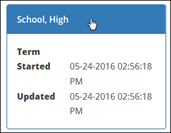
Each in-progress application record contains the following three tabs: general, Application, and Attachments. By default, the General tab appears first. Each tab is described below.
A - General Tab
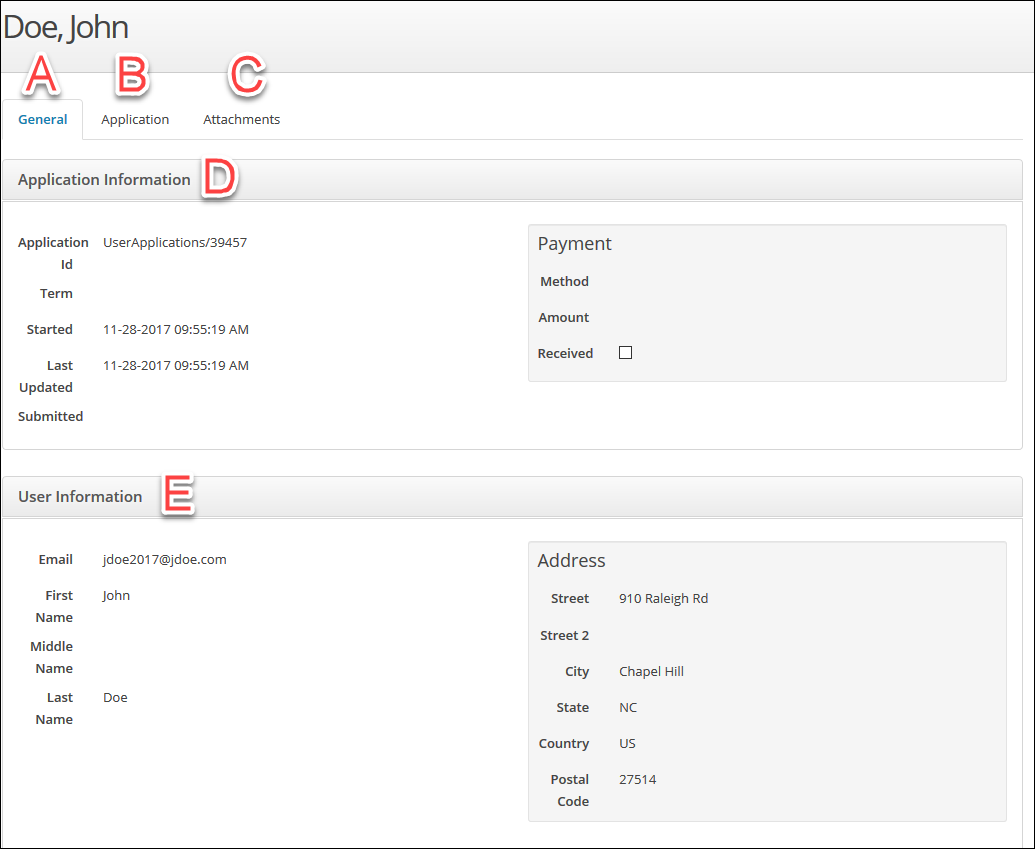
The General tab contains a quick review of important information about the application and applicant. Specific data from the General tab is as follows:
- (D) The Application Information shows information about the submitted applications
- Application Id: Unique identifier for the application
- Term: Enrollment term name (if one has been selected and saved on the in-progress application)
- Started: Date and time the applicant started the application
- Last Updated: Last date and time the applicant modified the application
- (E) The User Information shows information about the applicant from their CFNC profile
- Email: Email address
- First Name: First name
- Middle Name: Middle name (this is optional, so could be blank)
- Last Name: Last name
- Address Street: Street address
- Address Street 2: Street address (this is optional, so could be blank)
- Address City: City
- Address State: State
- Address Country: Country
- Address Postal Code: Zip code
B - Application Tab
The Application tab contains every field label of the application and the applicant’s response to those fields. While all questions appear, there is no guarantee that fields will be complete, since you are viewing an in-progress application. The application is shown in the same order as the information and fields appear to the applicant when completing the application.
- All information shown here is what the applicant has entered and saved to their in-progress application, not the profile used to start the application.
- Scroll down to see all application data separated by section and group
C - Attachments Tab
The Attachments tab contains any attachments that the applicant uploaded within the application itself.
- If you do not have a field on your application setup as an attachment upload field, then this tab will always be blank.
- If you do have an attachment field on your application, but the applicant has not completed it yet, this tab will be blank.
- If you do have an attachment field on your application, but the question is optional, this tab could still be blank if the applicant opted not to answer the question.
Attachments do not include application tasks that an applicant uploads from the Application Hub. Tasks can only be seen from the Applicants | Submitted Applications area. For more information see the CrossConnect: Submitted Applications documentation and the Help Center article on Tasks.
Common Term Actions (Examples)
View In-Progress Applications for a Date Range
You want to see how many applications were started (and not submitted) from 02/01/2017 to 02/05/2017, and quickly look at basic information about them
- Navigate to Applicants |In-Progress Applications
- Click the Filters box to open the Filter menu
- Since you are only looking at in-progress applications started within a specific date range, leave the Application ID, Term, and Rule fields blank
- For the Started Between field, click the first box and enter 02/01/2017
- Click the second box for the Started Between field and enter 02/05/2017
- Click the Apply Filter Only applications started within the date range entered will be displayed on the screen
If you are looking for a count of the number of in-progress applications that were started within your entered date range, look at the bottom of the page. It shows how many applications are being displayed on the current page and how many total applications meet your filter criteria across all results pages.