The In-Progress Applications section displays all applications that were started within the CrossConnect system and not yet submitted. An application will be counted as in-progress when the applicant clicks the “Apply” button within the CFNC.org Application Hub. Once the applicant submits their application, it is classified as “submitted” and will no longer appear in the In-Progress Applications section (it will now show in the Submitted Applications section). Within the In-Progress Applications section you can navigate to individual applications to see application details. Since applicants do not have to type any information into the application to be counted as a started application, the amount of data within the in-progress applications can vary widely, from just their name and email address to everything necessary for the application ready to be submitted.
Using Filters for In-Progress Applications
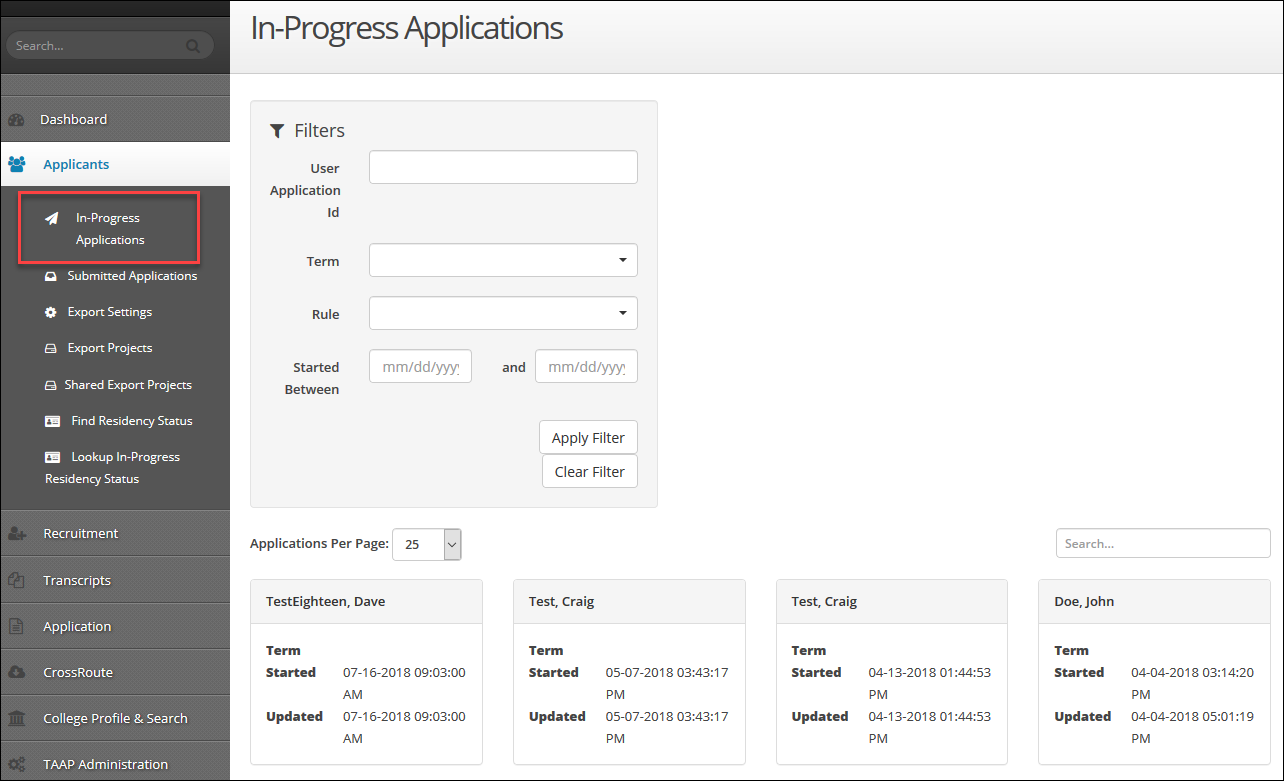
The main screen shows all in-progress applications to your campus, since the launch of CrossConnect. You can filter these results by using the filters box:
- The Filters box at the top of the page is used to narrow down the applicant information on the screen, based on the series of filters you select. Click Filters (
 ) to see all the filter options available.
- The User Application ID allows you to enter an application ID to find a specific application. When you enter an ID, be sure to include the text and number: userapplications/#######
- The Term filter allows you to see only those applications that were started for certain terms. Once you click the drop down menu for the Term filter, you will see all of the term names that are found in Application | Edit Application | Terms.
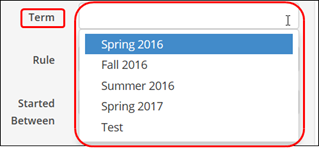
- Because an applicant can start an application without selecting a term, this filter will not capture applicants who intend to apply for a certain term but have not selected that term within their application.
- If a term has been deleted from Application | Edit Application | Term it will not show in this filter dropdown list, even if an in-progress application had originally selected that term.
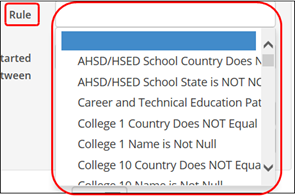
- The Rule filter allows you to view in-progress applications that satisfy the conditions of already created rules, e.g. all international applicants (for more information on rules, see the CrossConnect: Application Rules documentation).
- The Started Between filter allows you to view applications that were started during a specific date range. This filter only looks at when the applicant initially started their application; it does not look at when, or if, the applicant made any further updates to their application.
- The Apply Filter button (
 ) to view the in-progress applications that satisfy your filter(s).
 - The Clear Filter button (
 ) to remove any applied filter(s) and revert to seeing all in-progress applications again.
 - Click the dropdown next to Applications Per Page to change the number of results you see on each page below. The default setting is 25 results per page.
- To search for a specific applicant, enter their first or last name (or part of their first or last name) into the search box to perform a smart search.

- The default grid view provides information containing a specific set of application fields for each in-progress application:
- Last name, First name: Full name from the CFNC profile of the applicant who started the application
- Term: Enrollment term name selected on the in-progress application (Note: since these are in-progress applications, the Term field may be blank, if the applicant has not answered that field yet on their in-progress application)
- Started: Date and time the applicant started the application
- Updated: Last date and time the applicant modified the application
- At the bottom of the screen, you can see the total number of applications displayed in your results (over all pages).

- Click First, Previous, a specific page number, Next, or Last to navigate through your In-Progress Applications.