CrossConnect now allows you expanded capabilities when it comes to personalizing your College Profile with photos and videos of your campus. In the Campus Photos & Videos section you will see three sections:
- Currently Uploaded Photos – Houses all photos that have been uploaded by your campus
- Here you can view the picture uploaded, the location within the profile the photo is displayed, and delete a photo if you no longer want it on your College Profile
- Upload Photos – Where you can upload campus photos
- Photos should be in JPEG or PNG formats for best results
- Optimal photo sizes for each College Profile location are posted here for easy reference
- All photos will be scaled accordingly to fit the selected College Profile location
- Currently Uploaded Videos – Houses all videos that have been uploaded by your campus
- Information about how to submit new videos for your College Profile are posted here
- Campuses are unable to update their own videos and will need to request that CFNC make these changes for you
Uploading new college profile photos
- Navigate to College Profile & Search| Edit College Profile | Campus Photos & Videos | Upload Photos
- Select the Site location for the image: Choose which section of the profile you would like the image appear. There are essentially four categories of images: Carousel images, logo image, banner images that display across each tab, and the campus photos and videos section
- The logo image: Is your campus logo specifically sized for your CFNC Campus Profile. This can be a different image than the logo on your application for admission
- Carousel Photo: These images rotate across the top of the About tab on your College Profile. You can select up to five images to go here. CFNC has provided every school with stock photos to use until you add your own. We encourage you to personalize your profile by adding your own unique campus photos that really showcase your campus
- Banner Images: These images are divided out by the College Profile sections (not including the About section, since it has the carousel photos). Each section can have one banner image. CFNC has provided every school with stock photos to use in each banner until you add your own. We encourage you to personalize your profile by adding your own unique campus photos that really showcase your campus
- Campus Photos & Videos: These images are displayed on the Campus Photos & Videos tab of the profile and can hold multiple photos to showcase your campus
- Enter the text you would like to appear as the Image title; this will display on the image if shown within the Campus Photos & Videos tab, otherwise students will not see it
- Enter the text you would like to appear as the Image Description; this will display on the image if shown within the Campus photos & Videos tab, otherwise students will not see it
- Click on the browse button (
 ) next to Image to upload and then navigate to the location on your computer where the image is saved, select the image you would like, and then click open
 - The image will then be uploaded, saved, and inserted onto your campus profile automatically
Note: You are unable to upload an image until you select a site location
Optimal photo sizes by site location:
- Logo Image– 180x180 pixels (note: height can vary some but width should be 180 pixels)
- Carousel Photo– 705x200 pixels
- Section Banner – 705x150 pixels
- Campus Photos Section – any size
Note: Uploaded photos will be scaled accordingly to fit selected location
Upload Videos
To add a new video to your CFNC profile, please send either a link to the video or the video file to cfnc-campus@northcarolina.edu. Please include a title for the video and if the video should be highlighted as your “feature video” in your profile’s left navigation or if it should be posted to the Campus Photos & Videos section. All videos must be in MP4 or FLV formats and less than five minutes in length.
Please include the following statement in your email:
By requesting this image or video be uploaded, I represent and warrant, on my own behalf and on behalf of the entity that employs me, as follows:
- I (or my employer) own and have all rights to this image and/or video, or, in the alternative,
- I (or my employer) have obtained any and all releases, consents, or licenses necessary to permit the publication of this image and/or video in the manner for which I am uploading it.
- I (and my employer) will defend, indemnify, and hold harmless College Foundation, Inc. for any claims, damages or liability arising from or related to the use or publication of this image or video.”
Feature Video
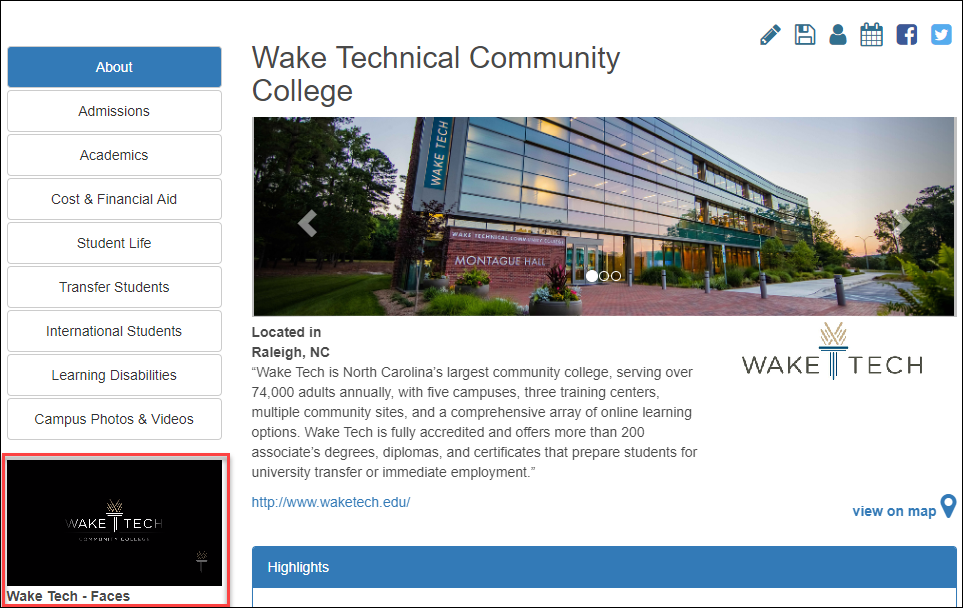
The feature video is a video that goes on the left navigation of the College Profile and will always be displayed, no matter what tab of your College Profile the student navigates to. This video would be a great location to place a campus tour or a promotional video for your campus.
Common College Profile Actions (Examples)
Update your Admissions Office Contact Information
You want to update your College Profile with the new phone number and email address of your admission’s office
- Navigate to College Profile & Search | Edit College Profile
- Click on the Admissions section in the left column of the screen
- Click to expand the Admissions office information subsection
- Enter the new email address in the Admissions office email field
- Enter the new phone number on the Admissions office phone number field
- Click the Save button (
 )
)
Update your Intercollegiate Sports
Intercollegiate sports are updated from their own special area. This is because there are many sport options and campus sports are searchable criteria for the CFNC.org College Search tool, as well as displaying on your College Profile. For this example, you want to add the sport of golf, for division II, for females to your college sports. Scholarships are offered for this sport on your campus.
- Navigate to College Profile & Search | Edit College Profile | Student Life | Athletics and click the link, “Click here to update your intercollegiate sports” OR navigate to College Profile & Search | Edit College Profile Basics & Search | College Sports
- Select “Golf” from the dropdown menu, Available Sports
- Select “Division II” from the dropdown menu, Division
- Select “Female” from the dropdown menu, Gender
- Click the checkbox next to Scholarship Offered
- Click the + Add Sport button (
 )
) - Click the Save button (
 )
)