The College Profile is a way for prospective students to see as much information as possible about your campus and other North Carolina campuses all in one place. This allows prospects to easily research the school they are interested in, and compare similar information about multiple colleges from profile to profile. Campuses can use the college profile to market themselves to CFNC.org users by providing detailed information about their campus, their applications process, and by adding photos and videos of campus life.
All information contained within your profile can be manually updated in real time using CrossConnect. The College Profile information will also be automatically updated annually with results from Peterson’s yearly college survey with one full load in September and a cost and financial aid update in December.
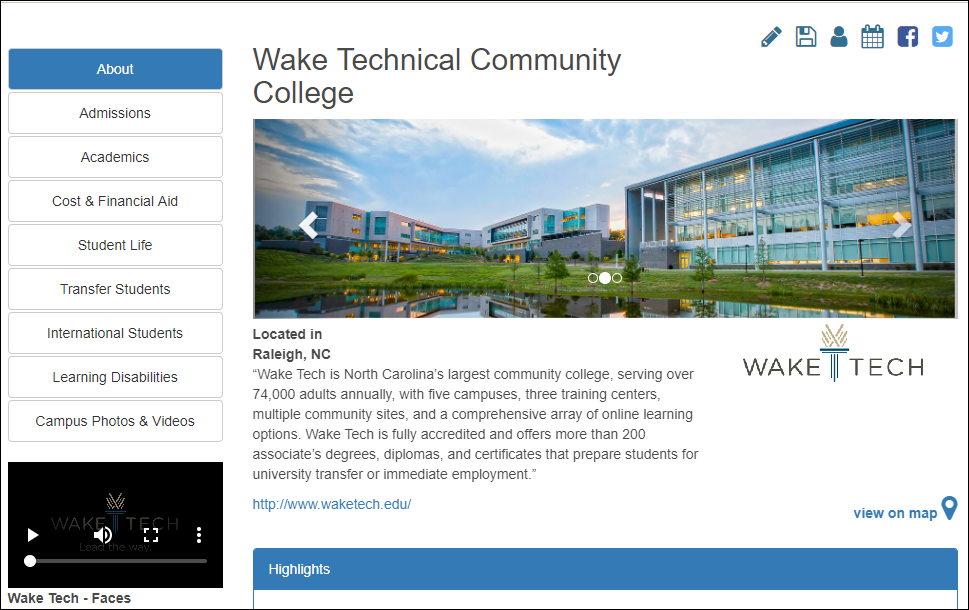
Parts of the College Profile
The College Profile contains nine sections:
- About
- Contains the high-level important information about your school, including key facts, campus contact information, important codes, links, a map, and a carousel of rotating images that you can personalize with images from your college
- Admissions
- Contains information pertaining to admissions, including application deadlines and fees, acceptance rates, admission office contact information, and more
- Academics
- This section contains information about your academic calendar, academic programs available, and curriculum
- Cost & Financial Aid
- This section contains information about tuition and average financial aid
- Student Life
- This section contains information about the make-up of the student body on campus, as well as other campus information including athletics, campus environment, social activities, and other areas
- Transfer Student
- This section contains specific information for potential transfer students
- International Student
- This section contains specific information for potential international students
- Learning Disabled
- This section contains specific information for potential students with learning disabilities
- Campus Photos & Videos
- This section displays the campus specific photos uploaded through CrossConnect and campus specific videos managed through CrossConnect
How to Edit your college Profile
The nine College profile sections, their subsections, and fields are reflected on the CFNC.org website in the same order as they appear in CrossConnect. This allows for ease of use when editing your College Profile. To edit your College Profile you will need to navigate to College Profile & Search | Edit College Profile.
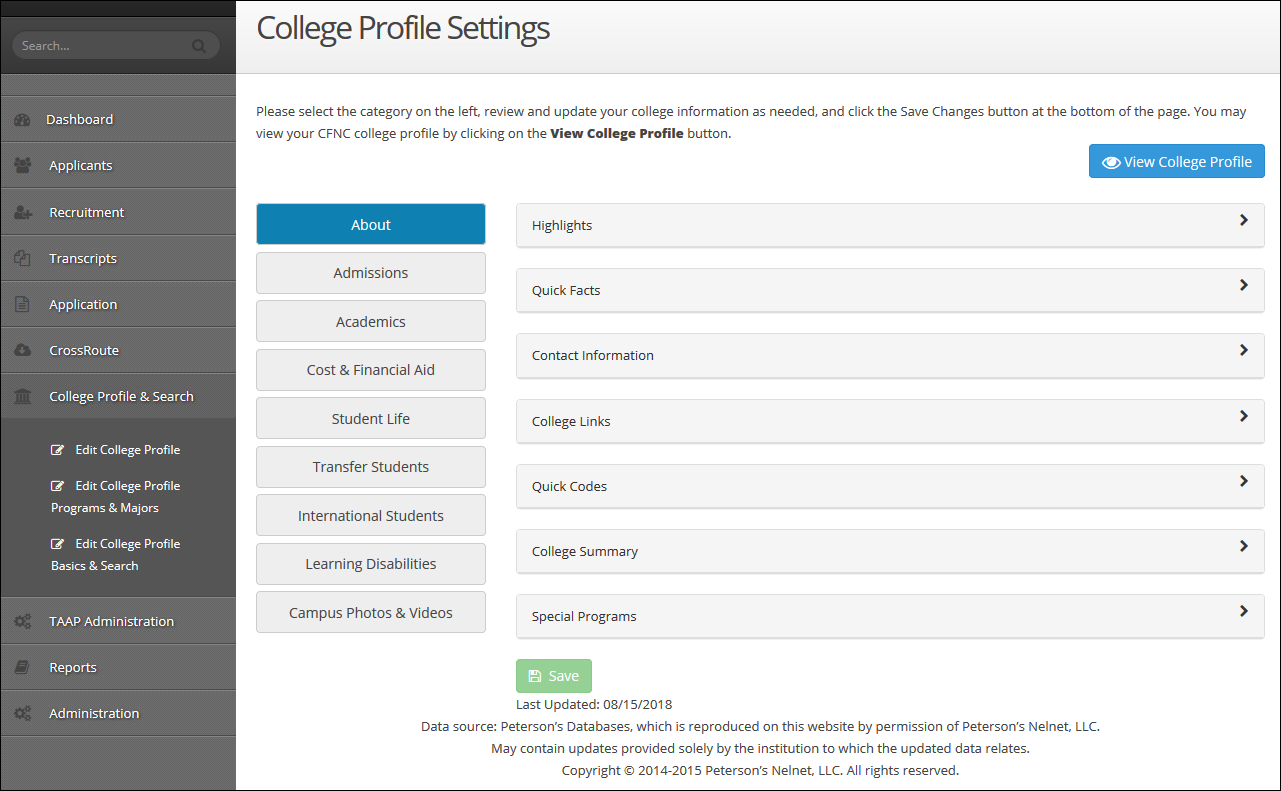
On the left, you will see the nine College Profile sections. The first section, About, will already be open for viewing. To the right of each section name are the subsections that fall within the selected College profile section, collapsed for easy viewing.
When you first view your profile, you may find that some fields are already filled out; this is because CFNC has already loaded information gathered from your Peterson’s survey. This load of Peterson’s data occurs twice a year, one full load in September and a cost and financial aid update in December. You can also manually update any of these fields at any time.
To manually edit your College Profile information:
- College Profile & Search | Edit College Profile
- Select the desired College Profile section on the left
- Select the College Profile subsection you wish to modify on the right (clicking the subsection will expand it to reveal the fields within that subsection that you can edit)
- Click on the field you want to edit
- Enter your updated answer into the field
- You can make multiple field edits on the same screen, moving from subsection to subsection within a College profile section
- Once you have made all your edits in a given College Profile section, click the Save Button (
 ) at the bottom of the screen
 - Saved changes are reflected immediately on your College Profile on CFNC.org
Changes that are not saved will be lost. When you save your changes, the “Last Updated” date at the bottom of the screen will update. This “Last Updated” date is visible to those viewing your profile from CFNC.org. It is recommended that you keep pages up to date, as prospective students tend to discount any information with a “Last Updated” date greater than a year ago.
To view your College Profile, as it is currently displayed on the CFNC.org site, click the View College Profile button ( ). Clicking this button will take you to your College profile, without having to pull up or log into the CFNC.org site.
Note: Fields that are manually updated by the campus, which come from Peterson’s survey, will be overridden by the Peterson’s update that occurs twice a year, so be sure that your survey is filled out correctly!
Required Fields
As you navigate through College Profile in CrossConnect, you will see a few fields that require an answer before you are allowed to save. Fields that are required are:
- Edit College Profile | About | Highlights: These fields are standard on every CFNC profile and the first fields that a CFNC users will see when they view your CFNC.org college profile
- College Search fields (various College Profile sections, subsections and fields): Fields that are used by the College Search tool and are mandatory in the College Profile to ensure correct College Search results for prospective students. You can update those fields within the College Profile, or quickly target just the search fields by navigating to College Profile & Search | Edit College Basics and Search (for more information about College Search, please see the “College Programs and Majors” documentation)
Academics | Programs/Majors offered
In the College Profile that CFNC users view from the front end, you will see that there is subsection called Programs/Majors Offered that falls within the Academics tab. In CrossConnect, in order to update this section, you must go to College Profile & Search | Edit College Profile Programs & Majors (for more information about programs and majors offered, please see the “CrossConnect: Programs & Majors” documentation).