College Search allows CFNC users to find colleges and universities based on various criteria that the user can select. There are a wide range of criteria ranging from cost, to academics fields offered, and admissions difficulty. Students have the ability to search both national and North Carolina Schools. Data that populates the college search results comes from the annual Peterson’s Survey campuses complete. North Carolina schools are at an advantage because they can manually edit this information in their college search data at any time and also provide additional information outside of what the Peterson’s Survey collects.
Editing College Search Filters
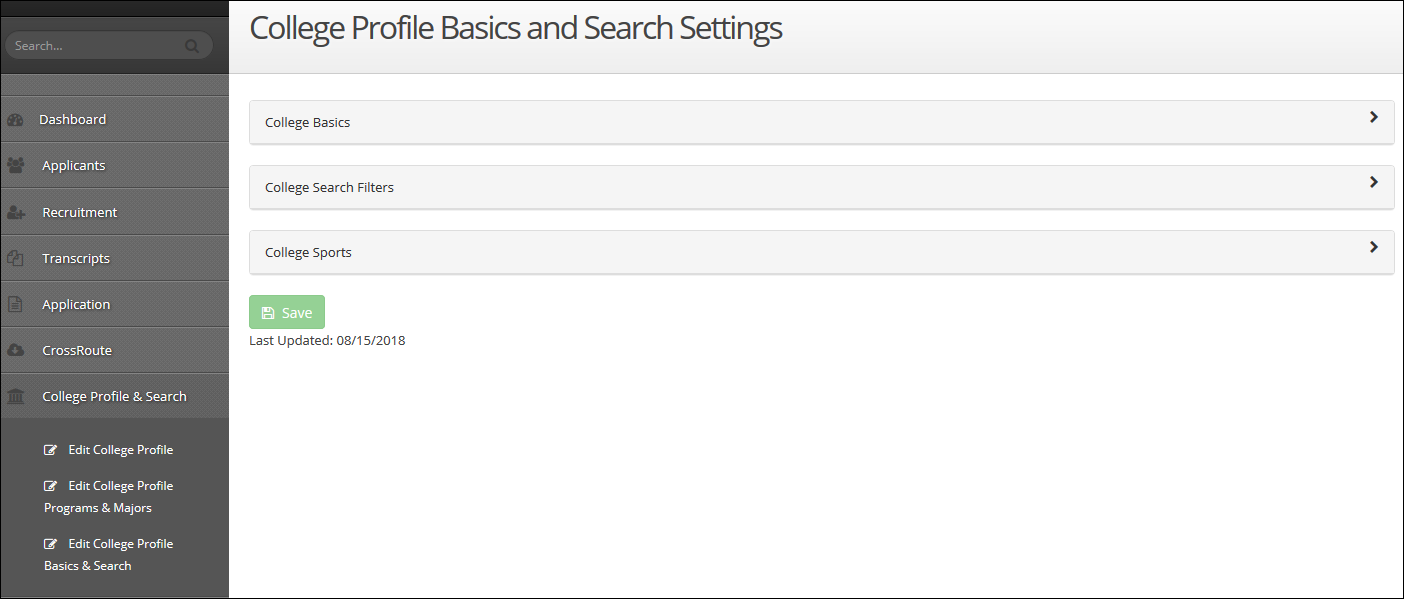
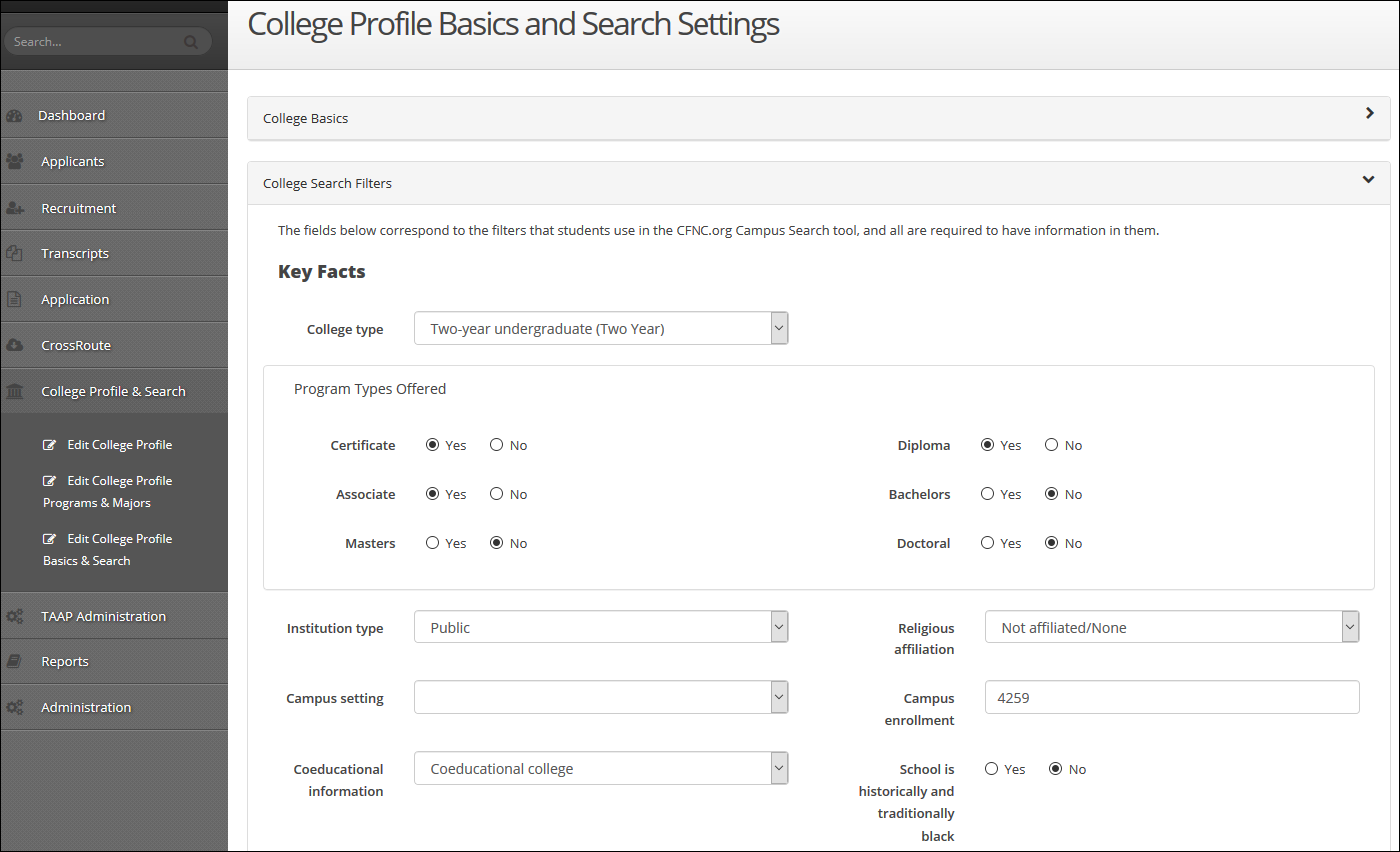
In order to update the information that populates to the College Search tool on CFNC.org, click on the College Search Filters box to expand the section and show all of the college search fields. The expanded College Search Filters section is organized into the six areas of the College Search:
- Key Facts
- Admissions
- Cost and Financial Aid
- Academics
- Intercollegiate Sports
- Campus Life & Services
These six areas contain various questions covering a variety of topics that enable students to narrow down their search for colleges and universities in order to find the best fit. In order to provide the most accurate school returns for students using the search tool, all fields within the College Search Filters section are required. Initially, campuses will need to fill out every field contained within this section before being allowed to save. Afterwards, you will only need to update this section if an answer needs modifying. All fields in College Search Filters can be found within your College Profile. Updating fields with in the College Search Filters section will automatically update the same fields in your College Profile and vice-versa.
Once you have completed answering all the questions, click the Save button ( ) at the bottom of the screen. Saving will also update the Last Updated: date at the bottom of the screen. This way, you can easily see how recently your information was reviewed and updated. Note: the Save button will only become selectable, once you have answered all of the required questions.
The majority of search filters are contained within the College Search Filters section, two exceptions are College Sports and College Programs and Majors. College Sports is last section within College Profile Basics and Search Settings and any changes to your college sports can be made there (if you do not offer college sports, click the “Sports are not offered” checkbox). College Programs & Majors is the second link located under College Profile & Search area on the left navigation bar. For more information about College Programs and Majors, see the “CrossConnect: College Programs & Majors” documentation. These sections are contained independently from the rest of the search criteria; however, the College Search Filters section does contain links to both sections to help you easily navigate to them when needed.
Common College Profile Examples
Add a New College Sport
College Profile & Search | Edit College Profile Basics & Search
You want to add men’s and women’s basketball to the list of sports your school offers. You want to include that they are Division III and that no scholarships are offered.
- Click the College Sports heading to expand the section
- Make sure that Sports are not offered is not checked
- Select “Basketball” for the Available Sports field
- Select “Division III” for the Division field
- Select “Male” for the Gender field
- Leave the Scholarship Offered? Question unchecked
- Click the + Add Sport button
- Change the Gender field to “Female”
- Click the + Add Sport button
- Click the Save button (
 )
)
Update your Tuition Costs
You want to update your in state and out of state tuition rates for the new academic year
- Click the College Search Filters heading to expand the section
- Scroll down to find the Cost and Financial Aid section
- Enter your new tuition into the In state tuition field
- Enter your new tuition into the Out of state tuition field
- If you do not have a different cost for out of state students enter the same value into both fields
- Scroll down to the bottom of the page and click the Save button (
 )
)
Update Program Offered
You want to add your new Nursing Certificate you your existing Health Science Program
- First you will need to make sure your new major has been created within Application | Majors
- Once that has been create navigate to College Profile & Search | Edit College Profile Programs & Majors
- Select Health Science From the list of Programs
- Selecting Nursing from the Available Majors dropdown list (This list is populated from your majors created within CrossConnect, if you do not see your desired major here please see additional documentation on creating majors)
- Select available degree types offered, Certificate, Associate, or Bachelor’s
- Click the Save button (
 )
)