The Application | Settings page is where you will be able to:
- Edit some basic information relating to your application
- Make changes to the confirmation message an applicant sees when they submit your application
- Controls payment methods and amounts.
Note: When making any changes in this area of CrossConnect please test the changes in the beta environment before making them in production to ensure everything functions as intended.
Application Settings
Application | Edit Application | Settings
Within the application settings section of CrossConnect you can make edits that govern some aspects of the application. Below is a list of all of the options contained within the settings section.
Basic Section
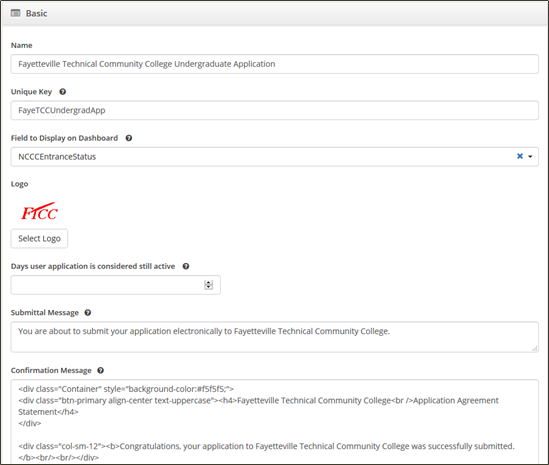
- Name – This is the name of the application that appears externally for applicants when they access it through the CFNC Application Hub. This also appears at the top of the screen when an applicant is viewing the application.

- Unique Key – This is an identifier of the application and appears within the URL of the application. It must be unique within the program for each application. It should not be changed. If it is changed it will change the URL and cause the application to become inaccessible by students.

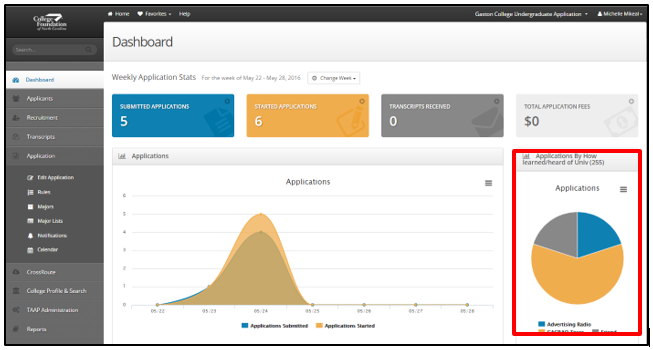
- Field to Display on Dashboard – This is the field that will display to the pie chart on the right side of the Dashboard. The dropdown menu for this field will automatically populate with all of the application fields. You do not have to select anything for this field, if you do select a field it should be one that has a fairly small set number of answer choices.
- Logo – This is the logo that populates to the application itself. Here you can upload a new logo if needed. The ideal size for the application logo is 468 x 60. We would highly recommend keeping the logo smaller than 728 x 90.
- Days user application is considered still active – This setting allows you to choose a number of days after which an application will be considered inactive. This will trigger the Application Expired notification if you have one configured.
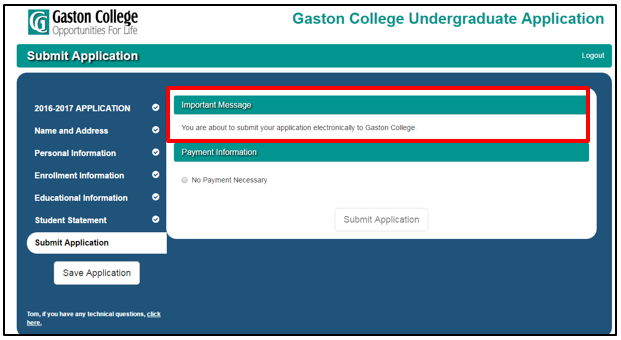
- Submittal Message - This message is displayed prior to the applicant submitting their application. If your campus charges an application fee this amount should be listed here so applicants know how much they need to pay. It does allow some HTML tags.
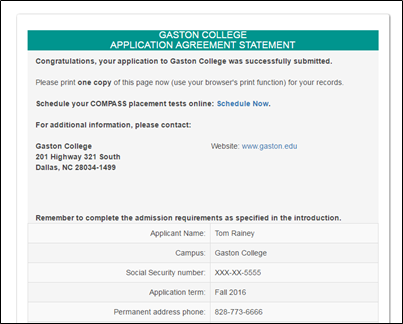
- Confirmation Message - This message is displayed after the applicant submits their application. This is also the message that the applicant will see when reviewing their application from the Application Hub. It does allow some HTML tags. If you are interested in making significant changes to this section, please make sure you have a firm understanding of HTML. If you would like to make changes to this section but are uncomfortable working with HTML please contact cfnc-campus@northcarolina.edu about any desired changes.
Payment Section
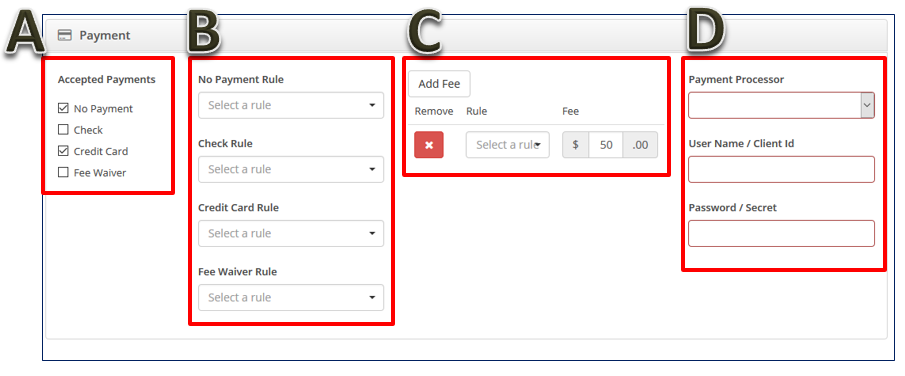
- (A) Accepted Payments – Here you can choose what forms of payments your campus will accept with the application. The options are No Payment, Check, Credit Card, and Fee Waiver. If you are interested in adding the Credit Card payment option please send an email to cfnc-campus@northcarolina.edu for more information on what is required and how to start the process.
- (B) Payment Rules – For each type of payment you have selected you can associate a rule with it that will display the payment option to applicants only if they meet the rule criteria. For example, you could have Fee Waiver only appear as an option for freshman applicants.
- (C) Fee – If you have an Accepted Payment type other than no payment you will see the fee options. You can have a fee without any rules to have it apply to all applicants. Or you can add a rule to set a different fee for certain group of students (ex. International students). You can set multiple fees, each with their own rule if desired.
- (D) Credit Card Options – If Credit Card is selected as an accepted payment then the options of Payment Processor, User Name/Client Id, and Password/Secret will appear. Do not make any edits to these if your credit card payment is already set up and do not enter any information into these fields if you do not have the credit card payment already configured. If you are interested in adding the Credit Card payment option please send an email to cfnc-campus@northcarolina.edu for more information on what is required and how to start the process.
Changing The Application Logo
Application | Edit Application | Settings
- Navigate to the Settings tab of the application
- Click on the Select Logo button directly below your current application logo

- Within the window that pops up, browse for the new logo you would like to use for the application
- Click the Open button in the file browser
- The logo is now changed, it will save automatically once you click the Open button in the previous step
Remove Application Fee for All Applicants
You want to remove your application fee for all applicants.
- Navigate to Application | Edit Application | Settings
- Scroll down to the Payment section of the page
- Uncheck all boxes except No Payment in the Accepted Payments column
- If No Payment is unchecked, check it
- Remove any rules from the No Payment Rule that may be in place
- Click the Save button (
 )
)
Add a Fee Waiver for First-Time Freshman Applicants
You want to add an option of a Fee Waiver for first-time freshman applicants.
- Navigate to Application | Edit Application | Settings
- Scroll down to the Payment section of the page
- Check the Fee Waiver option in the Accepted Payments column
- In the Fee Waiver Rule drop-down select your rule for first-time freshmen applicants
- Click the Save button ()